
Getting started
To enrich product attributes according to the ETIM standard, you need to have signed an ETIM agreement with Logiq Finfo. In the Finfo portal, you will find ETIM under the tab ETIM - Mina ETIM-artiklar (my ETIM Articles).

Working with your Articles
Selection
In the "My ETIM Articles" table, you choose which articles to enrich. The editing is then done in the "Edit" table. The latter table will not be visible until products have been selected in "My ETIM Articles." There is no requirement to fill in all the property fields.
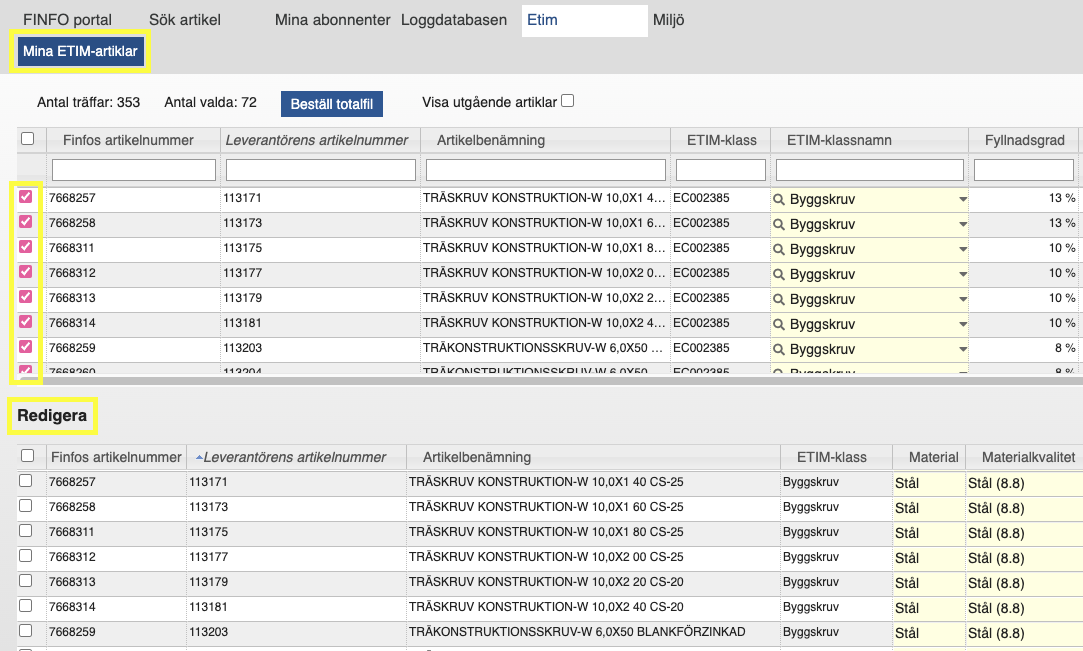
To enrich one or more articles, select them by checking the box on the left. For an optimized workflow, we recommend working with multiple products of the same ETIM class simultaneously, as the property fields will be the same.
-
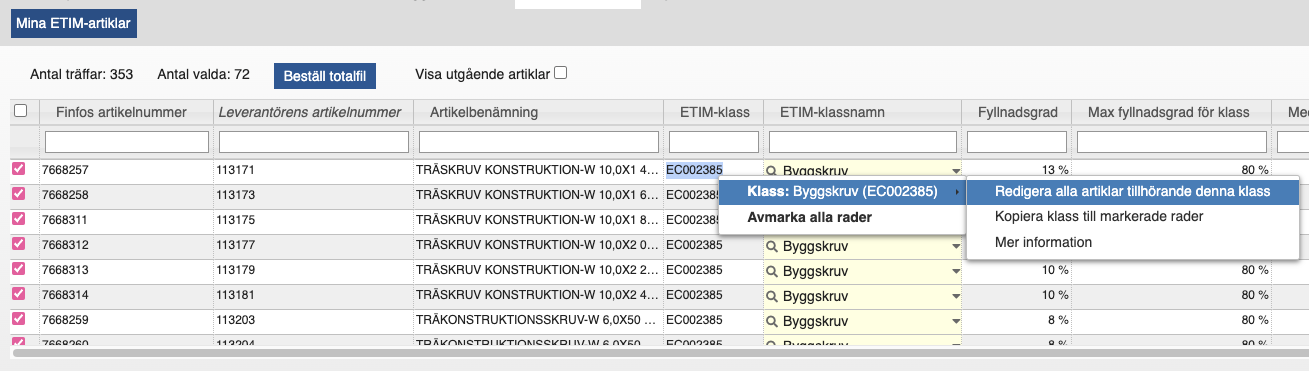
Edit articles in the same class: Right-click on an article in the ETIM table → Class → Edit all articles belonging to this class.
Enrichment
When individual articles or a class have been selected, they are displayed in the "Edit" table. All yellow fields are open for enrichment of property data. The fields may be of different types based on the product's characteristics. Different ETIM classes within the construction sector have reached varying levels of maturity, resulting in some product types and classes having more properties to enrich than others.
To enrich a property, click on the field, and the available options will be displayed. For measurements of various kinds, the field will indicate the unit to be used.

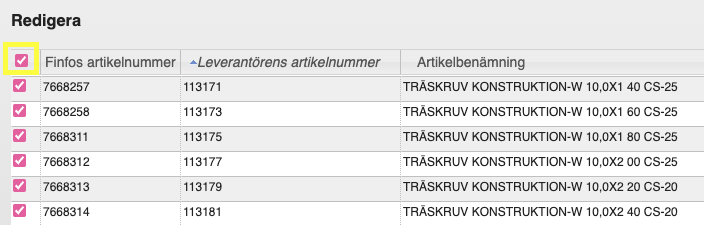
To copy the information in a field to multiple articles, select the articles that should have the same field properties by checking the box on the left side. To select all articles in the table, click the small box in the top left corner.
To copy the information, right-click on the field you want to copy, select the "Field" menu option, and then "Copy to selected rows." You can also choose "Article" and then "Copy all fields to selected rows" to copy complete information to all selected articles. Please note that this will overwrite existing data.

Search Tips
Below are some search tips to refine and streamline your searches in the interface.
To simplify the enrichment process, you can choose which columns to display in the Edit table by right-clicking on the header and showing or hiding columns.

Enter, for example, drywall in the Item Name to find results that start with the word drywall. This search will not return results for items such as hard drywall screw, but it will return results for drywall screw steel, drywall screw wood, and drywall mounting screw.
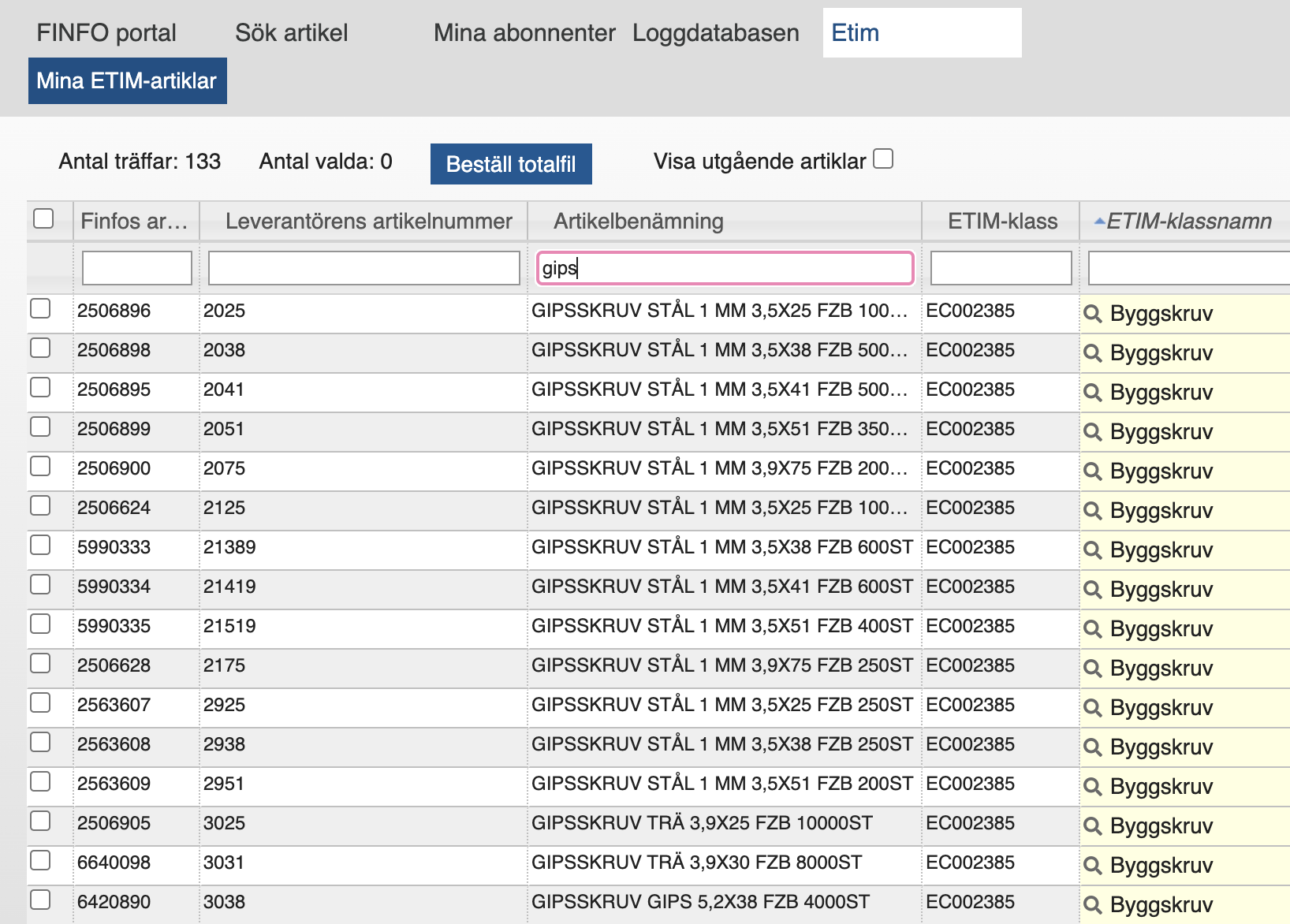
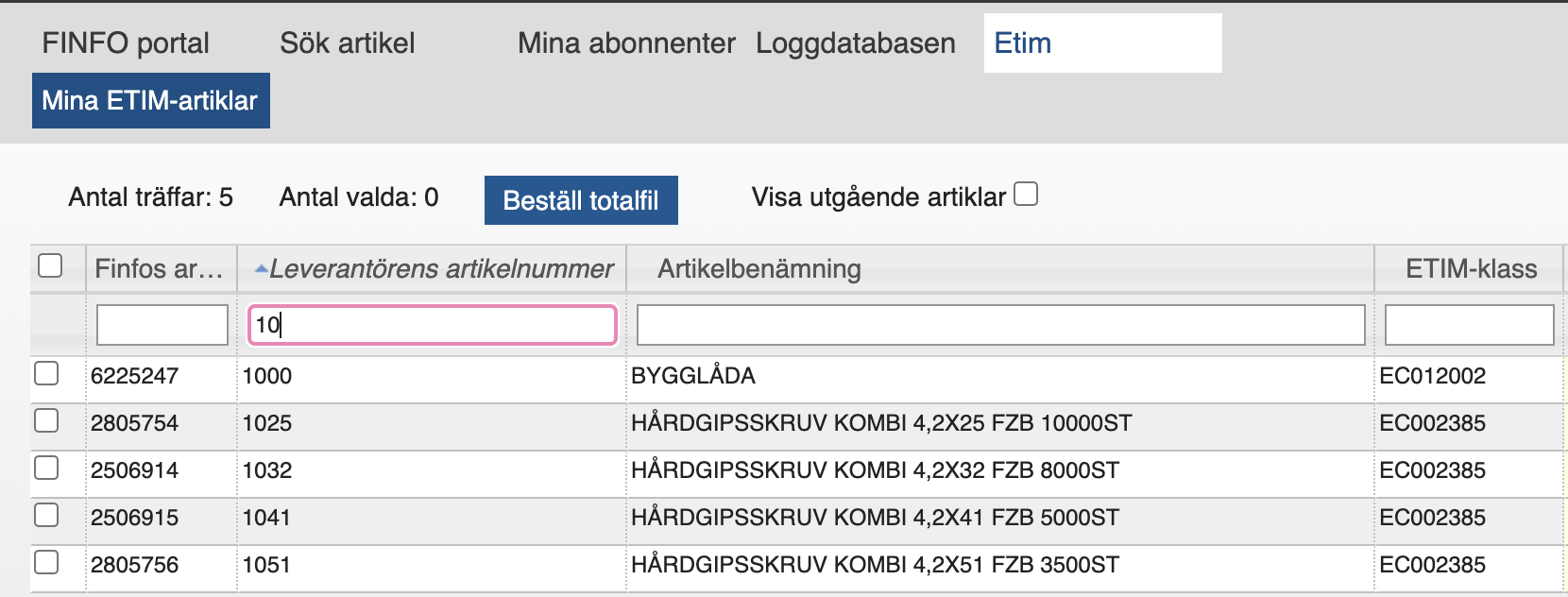
If you search in the Item Number field instead and enter, for example, 10, you will get results for all item numbers that start with 10.
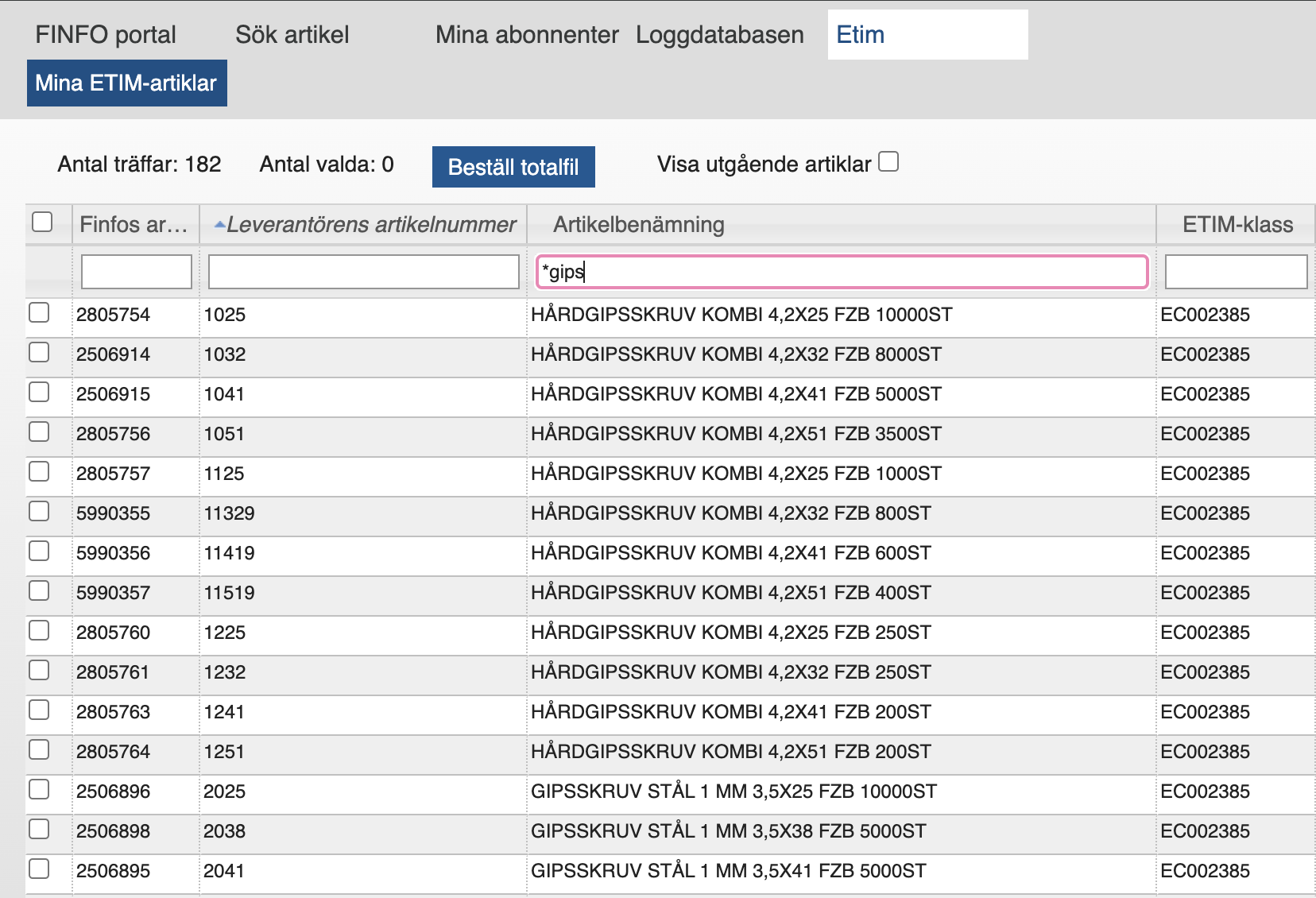
In a so-called wildcard search, an asterisk is used to refine the search. Enter *drywall to include all names with various variants containing the search term, such as hard drywall screw and metal expander M4 single drywall.
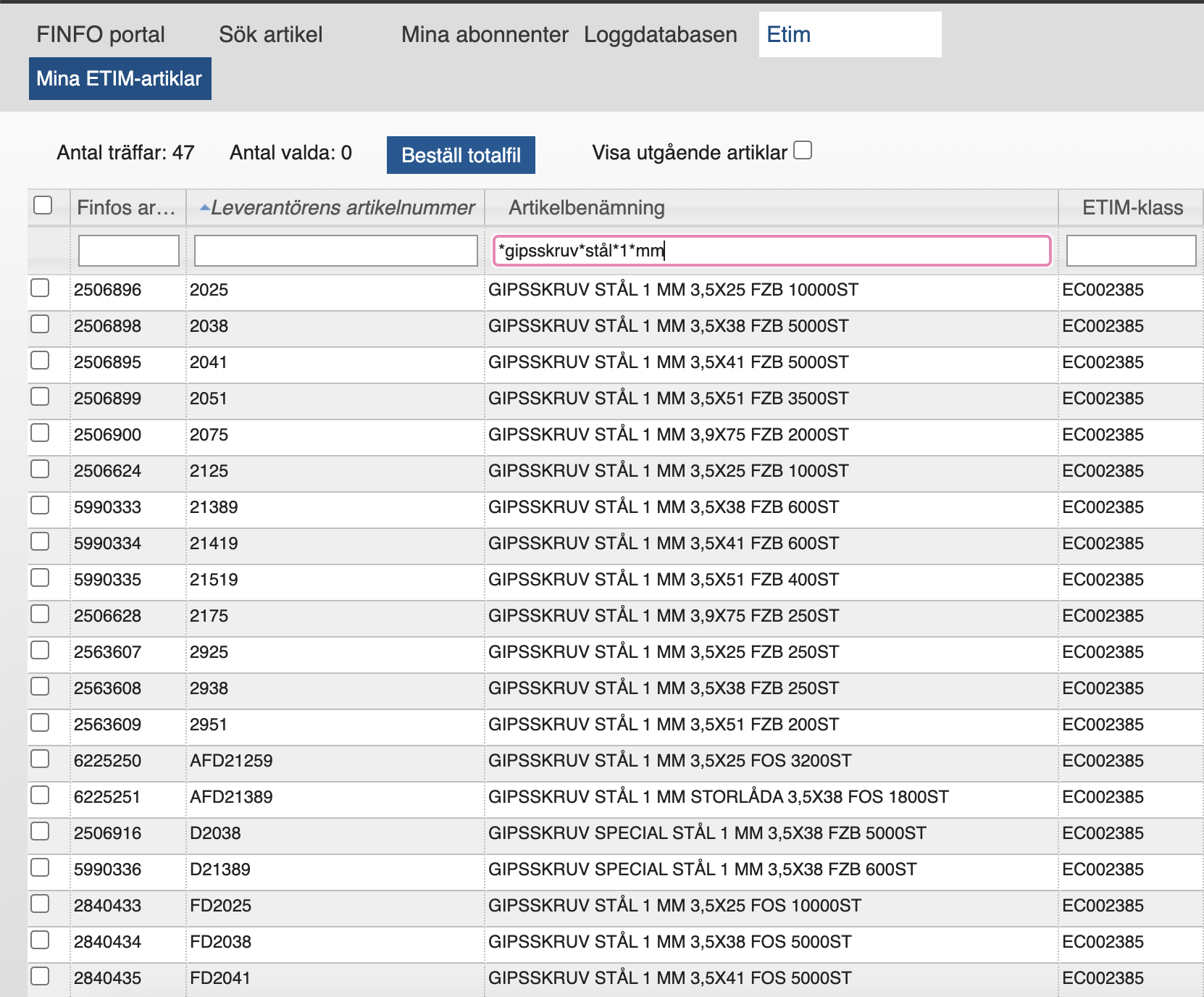
The search can be made even more precise by using multiple asterisks, for example, drywall*screw*steel*1*mm, which will return item names containing the words drywall, screw, steel, 1, and mm.
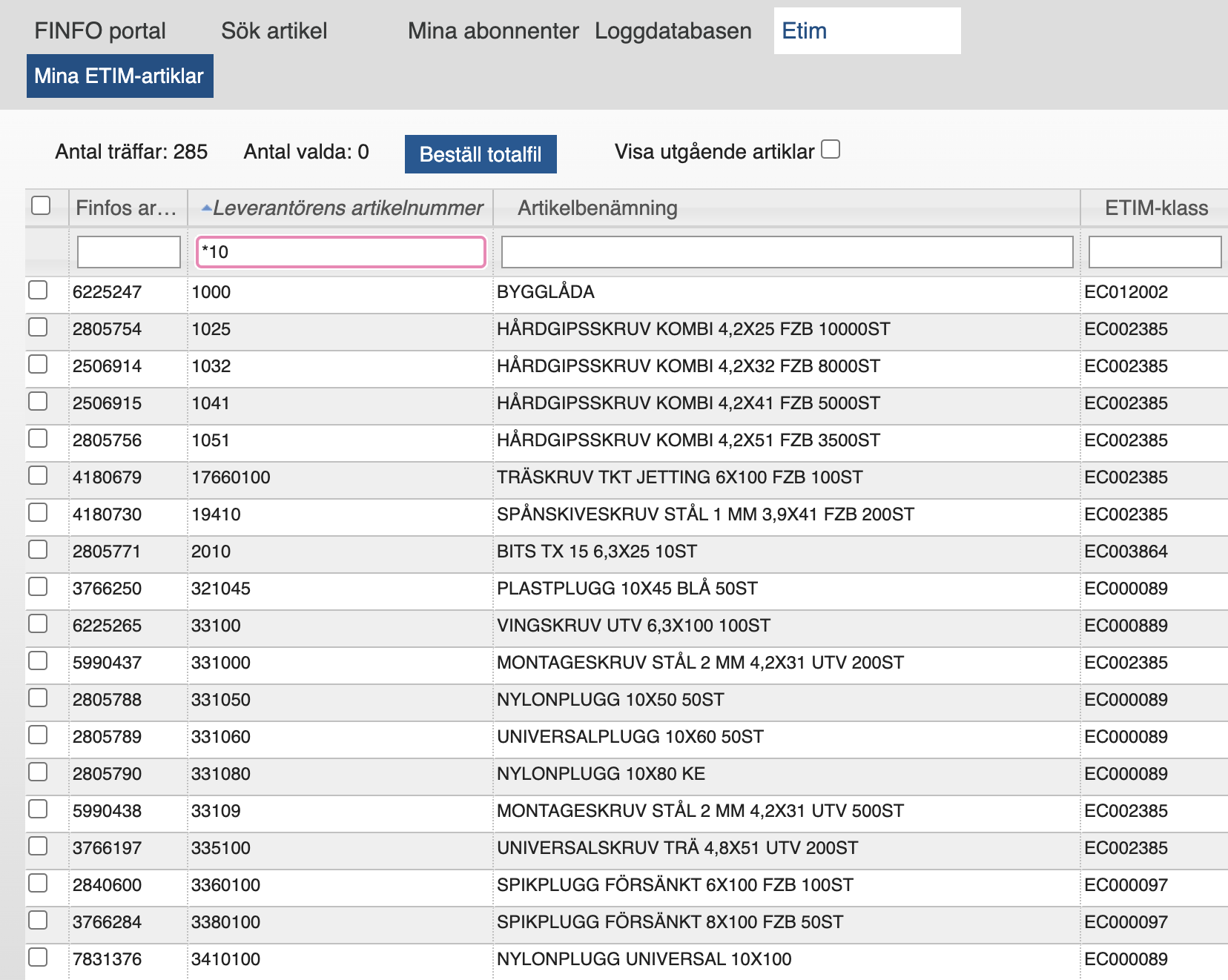
If you search in the Item Number field and enter, for example, *10, you will get results for all item numbers that contain 10.
Save Enrichment
When you have completed the enrichment of properties, it must be saved. This can be done for one or more articles. Fields that are not saved are shown in light blue, and saved fields are shown in yellow.
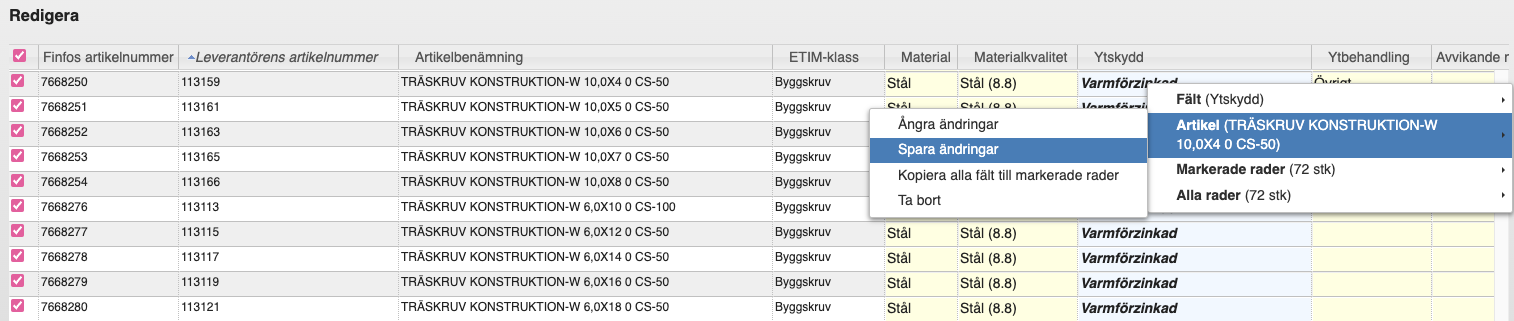
-
Save a single article: Right-click in the "Edit" table → Article → Save Changes
-
Save multiple selected articles: Right-click in the "Edit" table → All Rows → Save Changes
Here, you can also undo changes made to one or more articles. It is recommended to save regularly.
Enrich Other
When you have completed your enrichment and want to work with other articles or a different class, clear the "Edit" table by right-clicking in the "My ETIM Articles" table and selecting "Deselect all rows." Please note that you should save your work before clearing the table. The information will not be lost when the table is cleared, but you will need to select the same articles again in order to save.
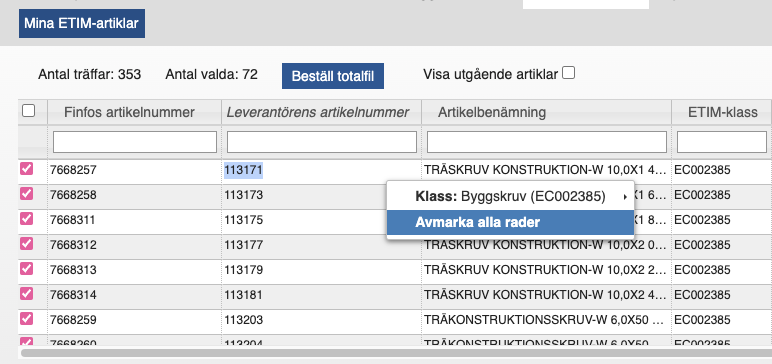
-
Clear the "Edit" table: Right-click in the "My ETIM Articles" table → Deselect all rows
You can now select new articles to work with.
Manual Classification
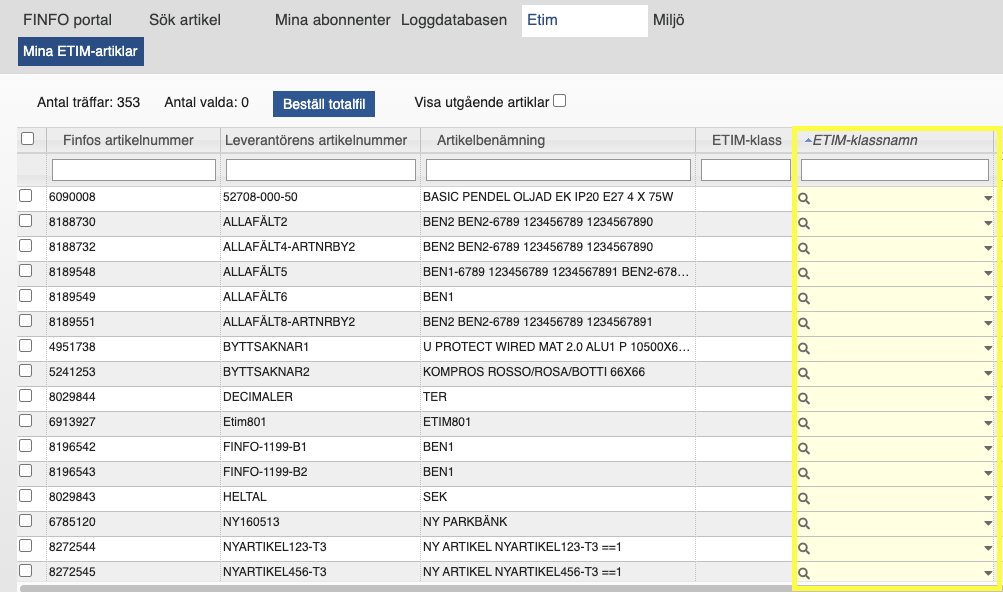
Go to the top menu and select the "ETIM" tab → "My ETIM Articles."
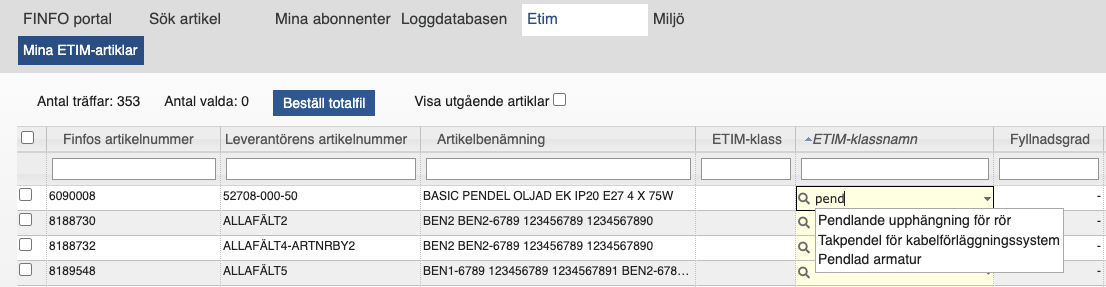
Position yourself in the "ETIM Class Name" field and start typing the name of the class you want to specify. A drop down menu will open.
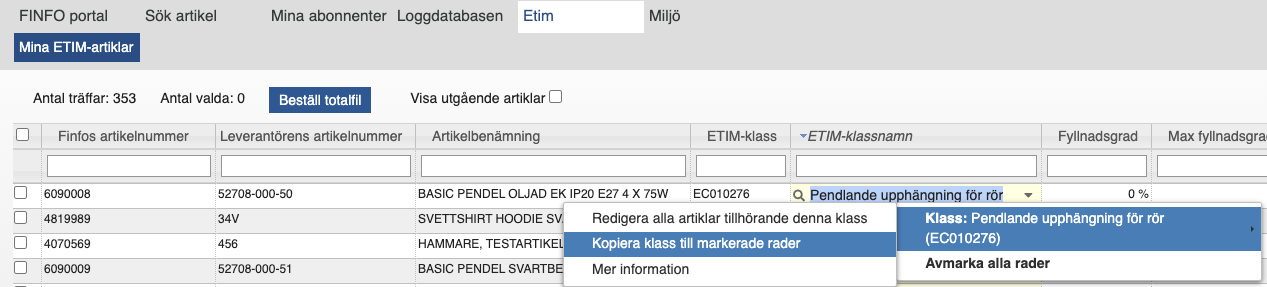
In the example below, we type "pend" because we are looking for classes related to “pendel” (pendulum). We get three matches for classes that might fit our article. We select the class Pendlande upphängning för rör (Pipe pendulum suspension) by clicking on it. The ETIM class field is then automatically enriched with the correct class, EC010276.
To assign the same class to multiple articles, select the articles you want to copy the class to.
Enrich multiple articles with the same class: Right-click on the row that contains the class you want to apply to multiple articles. Select "Class" → "Copy class to selected rows."
ETIM CMT
To work even more efficiently with enrichment, the ETIM Classification Management Tool (CMT) is an excellent tool for gaining an overview of the model, and to search for classes and properties for your products.
At the top right of the page, you can select the language you want to work with. The default is ETIM English. At the top left of the page, you can then choose whether to search for relevant classes, features or values.
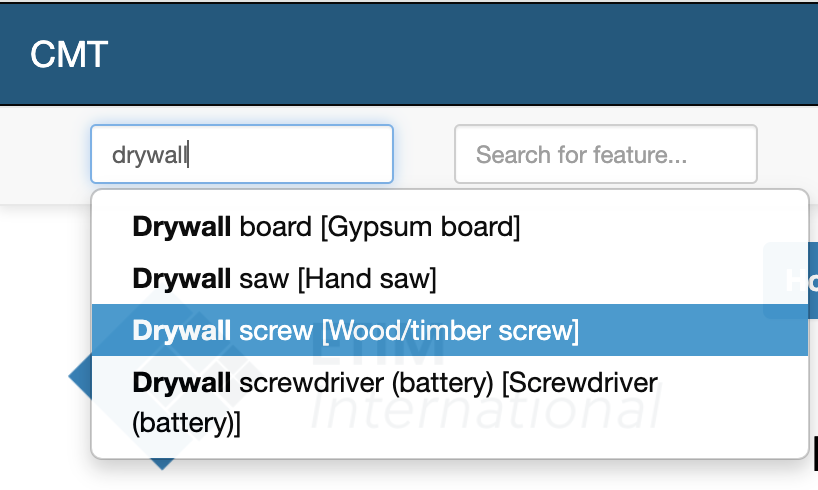
If you are searching for a class, you do not need to know its exact name; you can search using the class's synonyms. In this example, we want to find the class for drywall screw. We type drywall in the search field and receive four alternative classes. We select the class Wood/timber screw.
When we select the class, the class code EC002385 Wood/timber screw and its various features appear.

Under Translations, you can see the different synonyms, i.e., screws, that are included in this class.

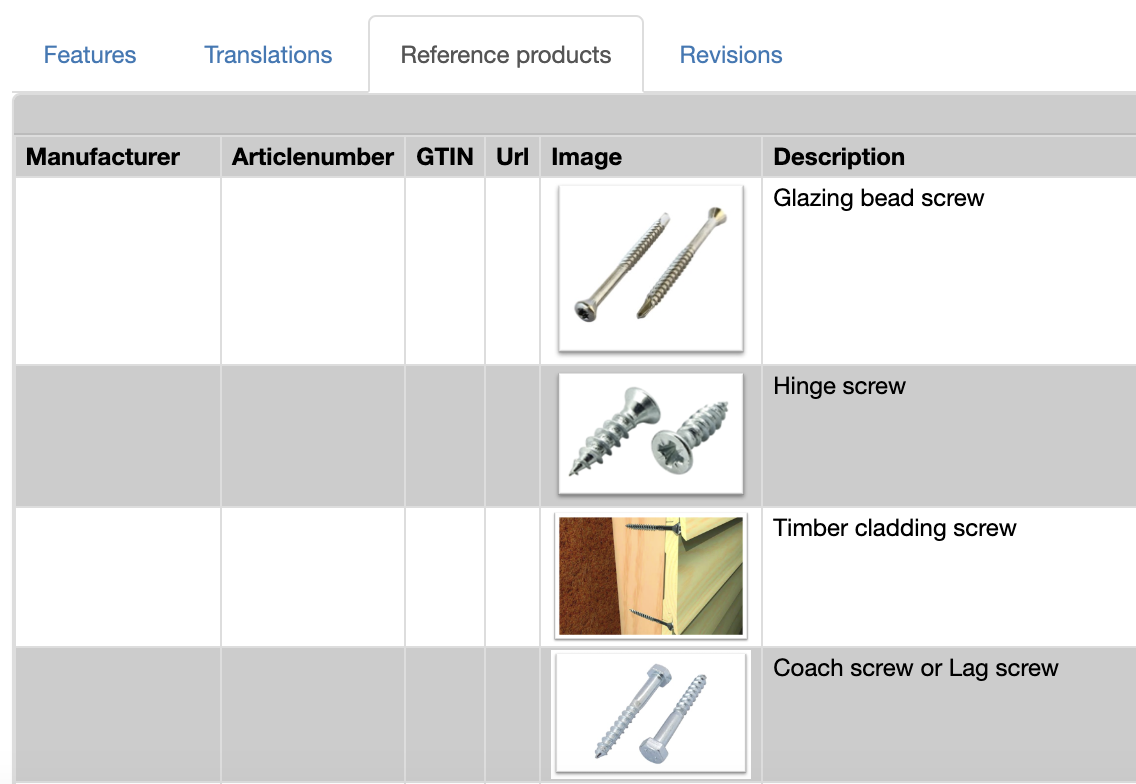
You can also look at various reference products to ensure that you have found the correct class for your drywall screw.
Once you have found your class, fill it in under ETIM class name in the interface. You can then proceed to enrich the item with features.
