
Once you have filtered your way to the selection you want, click Export.

This takes you to a preview where you can edit how the export will look.
Preview
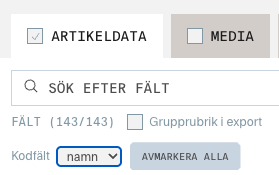
By default, you will only export Item data. You can also choose other services, such as Media, Climate, Product safety and/or ETIM, and add that information to the export too.
The export is created in the Finfo format, which contains all 143 fields. You can control this by unticking the fields you don’t want to include. You can also change the order of the columns and rename the headings.
You can also choose to export code fields as names, codes or both.
Field as name: yes
Field as code: 1
Templates
Finfo import template
The Finfo import template is a standard template and cannot be changed. You can use the export file to re-import data into Finfo.
Custom templates
You can upload your own templates for exports. You can also save an export template and reuse it.
Export list
To combine several different filters into one export, add your selections to the Export list. There you can preview the items you have selected and then export the selection.
Start export
Start the export by clicking Export Excel. Here you can choose the file format: Excel, CSV or JSON.
My exports
Here you will find your most recent exports. Files are kept for 10 days and are then deleted automatically.