
When updating many items at once, we recommend using the import template. It saves time and reduces the risk of errors when working with large volumes.
File upload
Finfo One
The import template is uploaded in Finfo One under the Upload file menu.
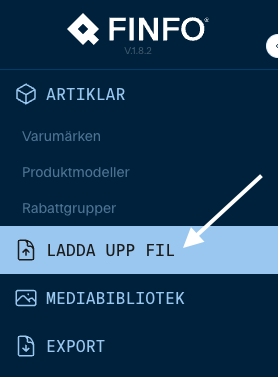
Click the UPLOAD FILES button. Drag and drop your import template directly into the upload area, or browse for your file. The permitted formats are Excel: .xls and .xlsx. Once you have uploaded your import template, you don’t need to do anything else. The job starts immediately, and you will receive an email when the import is complete.
SFTP
To upload via Finfo’s SFTP, you need an FTP client installed. Ask your IT support for help with the installation.
The import file and assets are uploaded to the media_import directory. Finfo recommends using SFTP upload only when automating imports. The import template, must be sent in Excel format (.xlsx). Note that the SFTP import is not case-sensitive for item numbers in the import file.
If the information provider has system support, the SFTP flow can be fully or partly automated. If you would like to use SFTP for automation, please contact Finfo.
Old Finfo portal
When uploading via the Finfo portal, upload the import template and the selected assets under the File upload menu. The file transfer is complete once you have selected the files and clicked Upload.
If the assets are stored locally on your computer, upload them together with the import template. If you have used links, you only need to upload the import template.
Import template
To import and update marketing information, use the import template.
You only need one file, because it is divided into tabs based on what you want to import. The import is dynamic, which means you can import a single tab or all of them. The import template includes help text for every field, and the last tab contains a Manual to help you fill in the template.
In the file, you can link either a web link, which Finfo recommends, or an asset. In both cases, you must include the file extension (e.g. jpg or pdf). The import template links each asset to an item and a type, as shown in this example from the Images tab:
Supplier's article number: The item number you use in business communication with your customers, for the item the asset should be linked to.
Image type: The type of asset being sent in. Choose the tab in the import template that matches what you are sending in.
Position: Positions are used to identify which resource should be regarded as primary, secondary and so on.
File name or web link: The file name including the file extension (e.g. jpg, png, pdf). This can also be a direct URL to the file on your own server. The file name must not contain Å, Ä, Ö, full stops (apart from the one before the file extension), spaces or special characters. If you use a link, it must be a direct link to the document, not a redirect link. Like the file name, the link must end with the file extension.

Managing assets
Replacing an existing asset
To replace an asset, send in a new import template where the new asset has the same position as the one you want to replace. For example, if Product Data Sheet A is in position 1 and you send in Product Data Sheet B in position 1, B will replace A.
Asset types
The same asset can be linked to several items, but only as the same asset type. This means an asset cannot be uploaded as a user manual once and then later as an installation guide, even if it is uploaded to two different items.
Finfo checks whether a file is the same by calculating its checksum, so renaming the file will not get it past this check. If a file has previously been uploaded with the wrong asset type, you must either delete the incorrect file or correct the asset type manually in the interface.
Removing an asset
You can’t currently remove assets using the import template. You can only unlink them in the interface. If an asset is no longer linked to any item, it is deleted automatically after 30 days.
Temporary item
A temporary item is created when assets or product texts are imported and linked to an item that does not exist yet. This lets information providers start enriching items with images, documents or product texts without waiting for new items to be approved.
In Finfo One, a temporary item has the status NEW. Once Finfo has received and approved the new item, the “Temporary Item” is removed and the item gets the status PUBLISHED.